Speaking the language of business intelligence with an Australian accent

Sunday, October 21, 2007

PerformancePoint Server 2007 Readiness for Australian Partners

If you're an MS partner located in Australia, read on.

MVP Peter Myers and I will be delivering two-day courses in five cities during November. One day will be dedicated to Planning and the other to the Monitoring and Analyzing aspects of PerformancePoint Server 2007.

  • Melbourne 13th & 14th November 2007
  • Sydney 15th & 16th November 2007
  • Perth 21st & 22nd November 2007
  • Adelaide 26th & 27th November 2007
  • Brisbane 29th & 30th November 2007

Course registration and location details can be accessed here.

Monday, September 24, 2007

PPS Monitoring SAP BW Data Source: CUT

Well, PerformancePoint Server 2007 has shipped. The launch event took place in New York a few days ago. Remember, that this was not the fireworks and streamers type launch - the really colourful general availability / volume licensing events will be coming in November. The NYC event was really just to say that the RTM version is built and is ready for use by MSDN subscribers.

...and now for the bad news. The SAP BW 3.5 multidimensional data source connector that existed in CTP builds (including CTP4) has been cut. The RTM build of PerformancePoint Server Monitoring does not support connections to SAP BW 3.5. This feature was cut at the very last minute.

I don't know about anyone else out there but this feature represents a deal-breaker to several companies. I have worked with in several large MS customers recent times who also have substantial investments in SAP BW infrastructure. Many made the strategic decision to align themselves with PPS over other products because they were told that PPS would support SAP BW connectivity.

I know, I know, CTPs are just CTPs and we can't rely on the feature set to stay the same once RTM arrives. Nonetheless, I think the decision to cut this particular data source at the last minute was a big mistake.

I have logged a suggestion on Connect to get the SAP BW data source put back into the product. Vote for it here. If you know anyone who may be affected by this, get them to vote too.

UPDATE: Tim Kent has left a comment informing us that the evaluation versions of PPS are available from http://www.microsoft.com/downloads/results.aspx?pocId=&freetext=performancepoint&DisplayLang=en

Friday, September 14, 2007

Two Rational Guides for PerformancePoint 2007

After The Rational Guide to Microsoft Business Scorecard Manager 2005 was released many people asked "so when's the PPS book coming?". Adrian Downes and I remained decidedly quiet about the idea of another book. It was, in fact, always our intention to write a PerformancePoint book, with the aim of publishing as close to RTM as possible.

Early on in the planning process we found that a single Rational Guide just didn't contain enough pages to cover the product adequately; to remedy this we wrote two books.

We are pleased to announce that the following books are soon to be published via Rational Press:

MonitorAnalyzeThe Rational Guide to Monitoring and Analyzing with Microsoft Office to PerformancePoint Server 2007 (available November 2007)


 Planning

The Rational Guide to Planning with Microsoft Office to PerformancePoint Server 2007 (available December 2007)


Based on the feedback from readers and bloggers, Adrian and I have found that the interest in learning the product is massive. Our titles are designed specifically to help you get up to speed quickly with the Monitor - Analyze - Plan feature areas of PerformancePoint.

Tuesday, August 28, 2007

PerformancePoint Monitoring - Scoring Types

Something that irked many people about BSM was the inability to simply display the number that was driving the KPI indicator images in a scorecard. That is, the result of the threshold banding method which is most often set to Band by normalized value of Actual/Target. This number should not be confused with the KPI score (but it often is). The only way to display the banding method figure is to mimic the calculation for it using MDX in another target. This is quite a lot of work to get a number that is already being calculated...

In PPS we get a choice of scoring methods: Raw or Normalized. The scoring type is set on each target in a particular scorecard. Raw is the number that is calculated by the banding method, that elusive number we could never display in BSM. Normalized (the default setting) is the same score calculation mechanism that BSM employed, no difference. If you want to know more about the process of normalized scoring have a look at this post.

The raw score is not the number you want to use in your Balanced, Six Sigma etc. scorecards. You want Normalized score. Raw score will be very useful in displaying the result of that all-important KPI leaf calculation that drives the indicator image, but because the numbers have not been normalized along a linear scale the eventual rollup through various objectives will almost certainly be incorrect.

Take a look at the following examples. I have created 3 KPIs and filled them with simple fixed values. All KPIs have a threshold banding method of Band by normalized value of Actual/Target, the scoring pattern is Increasing is Better, worst value is set to zero. I created two identical scorecards, the only difference between them is that one target uses Raw scoring and the other uses Normalized.

Raw Score
I purposely made the Actual / Target numbers simple to show that this method will indeed bring back the value of the banding method calculation that many expect to see. Take a look at the percentages in the Target column.


Revenue has a score of 92%. Because the Worst value in the threshold has been set at 0 the calculation is (92-0) / (100-0) = 0.92. Similar calculations are made for the other two KPIs. We have our magic number. Brilliant! But what about the rollup? 74.8% hmmm, no normalization here. Sure the business would like 74.8% with a green light at the top of their scorecard, but is it correct? Remember we're trying to roll up a dollar figure, a number and a percentage. Where's the common ground that enables them to be compared? There isn't one, that's the pitfall of Raw score. If we want to roll these numbers up in a consistent manner then we must use a normalized scoring method.

Normalized Score
Below we have the Normalized score version of the same scorecard using exactly the same KPIs. The rollup at the Business Performance objective is 56.8% and yellow. This is an accurate rollup. The normalized percentages displayed in the KPI targets will confuse users, just as score does in BSM (if displayed), but these numbers are accurate for what needs to be done.


Now, this not to say that Raw score should never be used, it is simply a reminder to be wary of how each score type works and why. Quite often users are not really interested in seeing the score (of any kind), so most of the time the score percentage remains hidden from view. Nonetheless, whether this number can be seen or not does not change the fact that it is being used by PPS to determine which target indicator image is displayed for each KPI. Raw score calculations always drive indicator images at the KPI leaf level irrespective of score settings - in both of the above examples all three leaf KPIs displayed the same indicator. Score type affects the rollup of KPIs which is why we saw a different image when a different scoring method was used. Raw score is very handy to have at your fingertips but be careful of using it when rolling up KPI data of varying kinds in a scorecard.

Friday, July 27, 2007

A change of [employment] scenery

Just under a year ago I got a call from a good friend and former colleague who asked if I wanted to co-author a book with him on Business Scorecard Manager. I accepted the offer and in April this year the Rational Guide to BSM was published. We found that our ability to collaborate on a project coupled with a shared passion for BI and BPM served us well.

A short time ago he called again to ask if I would be interested in working with him on a more full-time basis. Once more I accepted. This afternoon I completed my employment with SDM and on my return from 3 weeks of badly needed vacation will begin work as principal consultant at Adrian Downes' company B(iQ). I'm looking forward to working with both Adrian and his business partner Con on a number of exciting projects we have planned. Naturally I'll keep this blog updated with details on some of the more interesting ones ;)

Wednesday, July 25, 2007

PerformancePoint - It's all about MDX (baby)

"MDX is too hard, I just can't get my head around it"

"Oh, f*** it, I'll just write it in T-SQL; I'm good at T-SQL. Besides, the database isn't very big anyway, the performance difference won't be noticeable"

The above quotes, and others like them, are common. I've heard them uttered by both colleagues I've worked with and clients I've worked for. I'm not saying that MDX is easy, it takes time and patience to really get into it, especially if you've been immersed in relational DBs for half a lifetime. Nonetheless, if you're serious about BI and you're looking to do some PPS work in the near future then you need to develop a mastery of MDX. Period.

By mastery I'm not taking about [Measures].[Budget] - [Measures].[Sales] calculated members, that kind of MDX doesn't count in this context. I talking about the ability to write a complete, complex MDX SELECT statement freehand as you would T-SQL, understanding things like where it would be useful to use recursion, the GENERATE() function, create SCOPEing statements in a cube's MDX script etc.

I've been doing quite a lot of work with both PerformancePoint M&A and Planning in recent times and can say that if you don't feel comfortable in the MDX world then you'd better run. I'm not saying that if you don't know MDX then all is lost, not at all. You'll certainly be able to get by on all aspects of PPS without any real MDX knowledge. That is very much thanks to the MS developers and some intuitive UIs. If you don't "do" MDX you'll be absolutely fine with achieving the 80 part of the well-known 80:20 rule. However, MDX skills will account for a sizeable chunk of that remaining 20. And we all know how significant that 20 can be.

M&A MDX
A customer may want functionality to filter a dashboard by years. Based on the selected year a grid is displayed that contains the top 3 products sold by each of the top 10 stores based on the average sales amount for the previous 5 quarters from the 2nd quarter of the selected year. You'll need MDX skills for that.

Planning MDX
Budget figures need to be automatically apportioned down a hierarchy based on previous years' sales figures and their achievement of budget coupled with average sales numbers from the last 3 months. You'll need MDX skills for that too.

MDX cannot continue to be quietly swept under the carpet as many have done in the past. From a PPS perspective you'll get a long way without it but certainly not all the way.

Where to learn all this MDX goodness? Books, blogs & experience.

Books - Naturally, you should buy a copy of the MDX bible - MDX Solutions Second Edition. This is the MDX book, a must have (read my review). You can also try any of the other Analysis Services books on the market; they all cover MDX in a chapter or two, which should help to make a good start.

Blogs - Chris Webb and Mosha Pasumansky are without question the authorities here. Reading their blogs will also provide links to all sorts of other MDX stuff outside of what they write about. Don't just subscribe to their feeds, go to the blog sites and read all their posts from the beginning - tons of good stuff.

Experience - Write MDX, then write some more, don't stop. Once you think you're getting a handle on it here's a good test. Read this post that Chris wrote several months back on calculating debtor days. Pull the code into an MDX query in SSMS and pull it apart, take note of all that is happening. If you can understand all that goes on in there and why then I would say your MDX mastery is at a pretty high level.

UPDATE: Darren Gosbell reminds us about two more excellent MDX resources in the MSDN SSAS forum http://forums.microsoft.com/MSDN/ShowForum.aspx?ForumID=83&SiteID=1 and the SSAS newsgroup: microsoft.public.sqlserver.msolap. I should have included these in the original post. Thanks Darren.

So, if you have been quietly avoiding MDX up until now then the time has come to come out of hiding and tackle it head on. There's only a few months before PPS hits the streets, there's also more performance improvements and other goodness upcoming in SQL Server 2008 SSAS. Carpe diem!

Friday, July 13, 2007

PerformancePoint Planning Posts

If you're keen to get a better understanding of PPS Planning but haven't got time to get stuck into the VPC make sure you check out Adrian's series of 4 posts on the subject:

1. Setting the stage (Budgeting 101)
2. Configuring the Application (Introducing the Planning Administration Console)
3. Defining the Model (Introducing Planning Business Modeler)
4. Defining Business Rules

Saturday, July 7, 2007

PerformancePoint Monitoring - Analytic Charts & Grid functionality

Now we are beginning to see the ProClarity analytics stuff come bubbling to the CTP surface, and from what I understand there is more to come in the next CTP. In CTP 3 we are now given access to more fully featured (but not yet feature complete) thin client Analytic Charts and Grids.

The design experience with these two report types is simple but nice. We have drag & drop functionality which gets us part of the way there. More importantly, though, we have full access to the MDX behind the reports so we can go to town on creating some seriously dynamic content. We can either let Dashboard Designer build some MDX for us via drag & drop or we can write the whole MDX statement ourselves from scratch (or a combination of the two). Report requirements will probably dictate the approach...

What I really wanted to point out in this post is the functionality we are able to give the user via the browser with these new report types once published (particularly Grids). All users want to slice & dice (and they all just love saying "slice & dice" don't they?). Using OWC some limited interactivity was possible in BSM but it wasn't really that good, plus users had to have the OWC bits installed on their machines. Well, not any more (OWC reports are still supported in PPS, though).

Right-click is your friend
I'll let these screenshots do most of the talking here. All this functionality is thin client, delivered through the browser. A simple right-click on the appropriate dimension member exposes a huge amount of interactivity options. Drill up/down/across, expand, collapse, pivot, drillthrough ....


Selecting a dimension gives us a great view of the user-defined hierarchies and attributes contained therein. Below is a shot of a time dimension. Note the little clock icons on the dimension root and the attributes confirm that PPS is aware that we consider this a time dimension.


Here's a view of the Product dimension.

Drillthrough actions are exposed too. Not sure if all other action types are going to be supported just yet but this is a great start.

... drillthrough gives us a paged view of the granular data. Note the "Export to Excel" button in the top left too.


The PPS web parts also have a simple menu (top right of each web part) to enable the report to be shown in a New Window, so there is more room to drill, expand, collapse etc. Once users are done with their analysis, or they can't remember how they got to where they are there is a Reset View option and, naturally Export to Excel is there too.

The best part about all of this is that the work required by us to set it up is trivial. This kind of view is what I would call a launchpad report; the initial view of data is simple and compact, the user can get to just about any part of the cube they want to from that initial point.

The screenshots above were taken from a report that took me literally seconds to put together using drag & drop. [Product].[Product Categories] on rows and [Measures].[Reseller Sales Amount] and [Measures].[Reseller Order Quantity] on columns. That's it. Once this is exposed in a SharePoint via the Dashboard web part (I believe there may be specific Report and Scorecard web parts coming in the next CTP) the users can not only say "slice & dice" to their heart's content but actually do the slicing and dicing... and all with minimal dev time from us!

As a quick aside, I blame those bloody late night infomercials for the "slice & dice" thing. They started it! It all stems from those useless knife sets and chopping gizmos with stupid names presented by hosts who get dangerously excited about cutting an army boot or house brick in half. Just once in a demo I want to say "slice & dice" followed closely by "but wait, there's more!!"

Saturday, June 30, 2007

Official PPS Blog

The PPS team has an official blog (yes, it's shared by the M&A and Planning teams).

I really should have known about this blog sooner, I only found it myself this morning. It only seems to have come back to life in the last few weeks having had a handful of posts put up in March and then silence until early June.

An official PPS blog with only a few posts?! Maybe the teams are busy working on something...

Sunday, June 24, 2007

PPS M&A - Dashboard Designer Sandbox

One of the things that makes BSM development a little tedious at times is the need to be constantly connected to a Windows Server box with the appropriate BSM web service and SharePoint stuff configured. Bottom line is you can’t build out and test a BSM workspace in a disconnected environment. Unless you run Windows Server 2003 (and SharePoint) on your laptop you’re pretty much stuck with having to find an appropriate server on the network, or work on a virtual image of some sort. This can be a real pain when you need to knock up a quick proof-of-concept or just develop stuff off-line.


PPS M&A changes all that. A fully operational, sandboxed M&A environment can now be set up on an XP or Vista machine. When setting it up the Monitoring Server Configuration Manager figures out that it’s not executing on a Windows Server machine and also sees that SharePoint is not installed. It then goes about setting up all the M&A bits (minus the SharePoint stuff) that are required to:

  • Create workspaces with Dashboard Designer (while connected to data sources)
  • Publish to a local Monitoring web service and have those definitions stored in a local SQL database
  • Connect to data sources (both local or external)
  • Preview and test dashboards using a local ASP.NET preview site

The only thing you can’t do locally (obviously) is export to SharePoint. But that functionality is not really required when you have live Scorecard and Report preview in Dashboard Designer and your own private ASP.NET preview site for dashboards.

I never actually tried loading this on my laptop with CTP2 but I can definitely say that it works a treat with CTP3. Personally this is welcome functionality for me and makes two proof-of-concept projects I am currently working on much simpler. As long as I have the data sources locally I can build out and test a complete dashboard solution on my laptop in isolation. I’ll then get out to the client, connect to their monitoring server and publish the workspace contents. Bloody brilliant!

This kind of functionality now means that anyone can set up a M&A environment on their laptops and play around with the technology with very minimal fuss and effort.

Saturday, June 23, 2007

PPS M&A - Dashboard Designer Bulk Editing

PPS Monitor and Analyze CTP3 is out and available from Connect for those who have signed up. There are tons of features we knew were coming that we now get to play with in this release. There is tons to blog about.

In CTP3 Dashboard Designer adds a small but very significant development feature: Bulk Editing. As the name suggests this allows us to edit a whole group of the same element type at a time.

KPIs are a great example, consistent definitions and meta data make for easier, better scorecard development. However, as anyone who has worked with BSM will tell you, making the same change to a whole bunch of KPIs is not a difficult thing, just one that is very click intensive and monotonous...and when there are many changes to make to many KPIs, you always tend to forget one.

In DD bulk editing allows us to select multiple elements and change the same property for all of them at once. Things like:

  • adding a new target
  • changing the name of a target or actual
  • changing the element owner
  • adding custom properties
  • changing the number format
  • setting the same threshold boundaries


This is not only a feature to make changes to elements en masse but also a great way help ensure the bits of elements that should be the same are the same (quickly).

Simple feature, great productivity (and quality) improver.

Tuesday, May 29, 2007

Where do I create my KPIs?

In recent times there have been requests by many (including me a few months ago) to get more clarification on where KPIs are best defined – MOSS Ent 2007, SSAS cubes or BSM/PPS. So which one should we use? The consultant’s answer: It depends. All three alternatives are excellent when used within their boundaries and expectations are set for what each can and cannot do out-of-the-box.

UPDATE: Markus Fisher has rightly pointed out that the SharePoint KPI feature is only available on the MOSS Enterprise license, not the standard out-of-the-box, included-with-Windows Server version. This post in its original form said that this feature was included in the base WSS license, it is not. I have made several changes to bring it into line. Mea culpa.

For more information on the feature comparison of the various editions of WSS / MOSS have a look at this spreadsheet. Thanks Markus.

Microsoft Office SharePoint Server 2007 Ent (MOSS). One of the new features that ships with this portal product enables the creation of basic KPIs that are stored in SharePoint lists and displayed via web parts.

SQL Server Analysis Services 2005 (SSAS) is also one of those very cool and powerful applications that is included in the licence SQL Server 2005. SSAS 2005 brought with it the ability to use MDX to define KPI structures within a cube (or UDM).

Business Scorard Manager / PerformancePoint (BSM / PPS) like MOSS costs money on top of the SQL Server or Windows Server investment. One of their most primary functions is to build, manage and display KPIs and supporting data using a web service backend. KPIs are not an extra add-in feature for these products, it’s a pivotal part of what they do.

Based simply on cost and purpose which would be expected to be the most fully-featured KPI tool? Not much of a choice, is it? However, that is not to say you must purchase BSM / PPS if you even remotely consider creating KPIs. Not at all. KPIs are always about definition and data: what are we measuring and where is the data we need to measure it.

As we go into these next few points please remember that I am not trying to trash one option in favour of the other, which is why I chose to do this as more of a discussion than a “Pros & Cons” list. They are all very good KPI solutions, when used within their bounds and in line with requirements and the point in the BPM life cycle an organisation finds itself in.

Data Sources
MOSS – Each KPI can only have one data source which is used to populate the actual. This data can be sourced from published Excel documents (including Excel services), other WSS lists and statically entered values. They also have the ability to connect to SSAS cubes, however, the data that can be accessed must be contained in an SSAS KPI structure. You can’t access individual cube measures that exist outside KPI structures.

SSAS – Because we are using a cube it goes without saying that KPI data is sourced from its parent object or possibly another related cube. Of course, the data in cubes is often the result of some form of data consolidation, so the data in the KPIs may well have originated from several different areas.

BSM/PPS – BSM can access data from ODBC and ADOMD.NET data sources. PPS will be able to source data from SQL tables, WSS lists (including KPI lists), SAP BW 3.5, OLAP cubes, Excel files and Excel Services files.

Actual / Targets
MOSS – The actual value can be hooked up to a data source and the target thresholds must be manually configured within the definition of the KPI. There is no ability to set any dynamic (data bound) target data. Actuals are compared with the target threshold to see if the actual is above or below the target. This then drives what indicator is displayed.

SSAS – Each KPI definition is made up of Value, Goal, Status and Trend attributes. The data returned for each are driven by MDX scripts defined within the cube. Essentially the Goal and Status elements make up the one “target”. The Goal is the number what we want to achieve and the Status drives the visual KPI indicator.

BSM/PPS – as many targets can be defined per KPI as are required. Each of these targets can be connected to a different (or the same) data source as the actual. There are three different actual-to-target comparison formulas can be used to determine each target status. Targets also suit another purpose here; to provide more contextual information about the KPI. Put simply, target values do not need to be compared to the actual. They can simply hold related data, such as YTD or previous period figures.

Indicators
MOSS – Can be configured with 3-level “Increasing is better” or “decreasing is better” indicator bands. There are 4 sets of icons available including traffic lights & smiley faces. Different icons are not configured when creating the KPI and can be changed in the web part that displays them.

SSAS – Also has 3-level indicators of increasing or decreasing is better. There is a wider choice of icons available but no easy means to make any changes to these at all.

BSM/PPS – Indicators of increasing and decreasing along with “closer to target is better” are available. Indicators can be defined with banding of 2-10 levels. A wide range of indicators ship with the products as well as wizards to create your own. Indicators can communicate status via icons, text, text colour and background colour.

End user interaction
MOSS – Via WSS web parts connecting to the SharePoint list the KPIs are stored in. KPI web parts can also be incorporated in Report Centre dashboards.

SSAS – Cube browsing / querying functionality is needed. KPI figures and icons can be accessed through Excel 2007 pivot tables and hence Excel Services documents. There are MDX KPI...()functions which enable KPI data to be accessed by any (SSAS 2005 compliant) OLAP client.

BSM/PPS – Via custom BSM / PPS web parts communicating with a web service.

Scorecarding
MOSS – Although there is some aggregation capability, KPIs cannot be rolled up to produce what would really be considered a scorecard. Weights cannot be configured against individual KPIs. Using WSS list functionality you could probably group them, though.

SSAS – Weights can be applied as part of each definition and grouping can be configured, However, outside of BIDS these attributes don’t enable any kind of simple out-of-the-box functionality for scorecarding. Calculation of a score and rollup of that score are also not supported.

BSM/PPS – KPIs can be grouped in scorecards for creation of objectives. Scoring is supported, KPI weighting is also supported and is used in rollup score calculation.

Summary
MOSS KPIs – easily created (by just about anyone), easily deployed but simple functionality. Brilliant for prototyping and also for simple, KPIs that may not have a managed data source behind them.

SSAS KPIs – these are not an “instead of” they should be an “as well as”. For some they are a bit more difficult to create because of the MDX requirement, but as a result they can be much more powerful. They greatly enrich the cubes that contain them. The KPI data can be consumed by any OLAP application, in particular BSM / PPS. Chris Webb recently posted some good info on ways to make these KPIs a little more dynamic when it comes to target threshold settings.

BSM / PPS KPIs – by far the most functional & flexible KPIs from just about every aspect, and so they should be, these products are speificially built for this purpose (and you need to pay for it).

The fact that each product can “do” KPIs doesn’t mean that this is a one-or-the-other kind of choice. There is no “answer”, no right or wrong. Each of the alternatives can be used to help a business establish both the definition and data parts of their KPIs. It takes real time and effort to determine what needs to be measured and where the data is. Often the hardest thing is to figure out is the target data (budgets, forecasts etc.). The actuals are normally quite a lot easier.

The creation of a KPI in any of the above three applications is easy, quick and simple if based on a solid definition and good data . The opposite is next to impossible and useless. In comparison to proper KPI definitions and data, the choice of software used to house the KPI is insignificant. In the end users will drive software to be used with their requirements.

Users evolve, they will always want more. Give them one KPI, they want ten. Give them ten KPIs, they want a scorecard. Give them a scorecard, they want drilldown reports. IMHO any business that is serious about BPM will eventually find their way to BSM or PPS, because it is what they are built for.

So use all three types of KPIs while on the road to BPM enlightenment. Understand the strengths and weaknesses of each. But recognise that KPI definition and data are paramount and should take precedence above all else.

Monday, May 21, 2007

PPS M&A - Intelligent Time Intelligence

Time Intelligence (TI) in BSM doesn't really deliver the functionality that many thought it is supposed to. The use of the LASTNONEMPTY function in conjunction with the LAG and LEAD settings in an Actual or Target creates more confusion than anything else. When data is allowed to enter the source cube for next month, next year or any point in the future it throws the whole thing off. The bottom line is BSM TI doesn't know what day it is today and has only limited knowledge of data source time dimensions. I recently posted one way to make OLAP-based scorecards a little more time intelligent, but PPS has something far better in store, and not just for OLAP data sources...

Last week I presented a couple of PPS sessions with Steve Handy of MS at the Asia Pacific SharePoint conference in Sydney. Steve is a PM on the M&A (Monitor & Analyze) team. One of the features he is most proud of designing in the upcoming product is proper time intelligence. When it comes to TI PPS will know what day it is and will add quite a bit more to the equation as well. The current CTP2 build of PPS does not include TI features, however we will see these new bits in CTP3 which is slated for release some time in June.

How Will TI Work?
Time dimension meta data will be configured as part of the definition of a data source (more on that below). The actual TI functionality will be hooked up using filters in the Dashboard element. BTW, the term filter will be used in place of parameter in PPS. All filtering will be done at the dashboard level, so scorecards (or scorecard views) will not have page filters as part of their definition like they do in BSM. The functionality & flexibility filters will provide is going to be great and worthy of a post of its own at some point in the near future.

MS has tried with both BSM Builder and Dashboard Designer to provide tools that are not specifically geared towards developers. This is one of the reasons these applications reside in the Office family and we do not use a Visual Studio snap-in to design and publish our scorecards & KPIs. The hope is that power users and analysts will be empowered do more of the PPS design work. With this in mind the M&A team designed the STPS (Simple Time Period Specification) to enable easy configuration of dynamic time periods. PPS will also allow the use of pure MDX for this kind of functionality too (which is also great news) but for those with little or no MDX experience (read: Analysts, PowerUsers) the following example commands, and quite a few others, will be very useful.

Single members:
Month = current month
Year = current year
Month-1 = last month
Quarter-2 = two quarters ago

Ranges:
{Month-6 : Month-1} = last 6 whole months
{Year.FirstMonth : Month} = year-to-date
{Month : Year.LastMonth} = current month to current year end (forecasting range)

We will also be able to configure a Fiscal year start month value, so if your financial year starts in August a call to Year.FirstMonth will return August and not January. There will not be functionality just yet for really funky fiscal calendar rules but this should suffice for most.

Multi-data source TI
So STPS makes it easier to do what we could otherwise achieve with simple MDX? Great. The fact that we will be able to use MDX to create dynamic filters is in itself a big step. However, what if our data source is not multi-dimensional? We can’t use MDX but we can use the STPS. TI will enable time filtering homogeneously across both OLAP and non-OLAP data sources through dashboards using STPS. Similar functionality will also allow cross data source filtering of other common dimensions other than time. This is the stuff that blows the “you can’t have page filters data in a multi-data source scorecard” right out of the water. Think of an OLAP cube containing revenue numbers sliceable across time and territory dimensions. The monthly budget figures per territory are held in an Excel spreadsheet that contains datetime and territory columns. Thanks to TI and the some new PPS goodness called the Tabular Data Provider (TDP), filtering across these common “dimensions” will be possible. Multi-data source filtering and the TDP are also worthy of a post on their own at some point soon.

Update 26-Jun-2007: Apparently the common dimension slicing capability mentioned above e.g. Geography will probably not be available. The cross data source TI capability is being worked on at the moment.

Data Source Configurations
As mentioned above, data sources are where we will configure the TI foundation meta data. The two screenshots below are of the CTP3 Time tab in the OLAP and Excel data source UIs. TI uses this meta data to create internal mapping structures that are referenced by the STPS to enable the cross-data source time slicing.

In the OLAP area we need to configure one reference member of the time dimension, relative to which all others will be calculated. So we tell it that the reference member is, say, 01 July 2006 and subsequently pick the same date from the “Maps to…” date picker. Now that PPS “knows” which member of the dimension we consider to be July 1st 2006 it can then calculate every other date and period relative to that one. Armed with this knowledge (and the current system time) calculating time relative to now/yesterday/last year becomes much easier. Naturally, we also need to provide more meta data about the levels that make up the time dimension, and of course the dates contained in the base dimension need to be contiguous.


In Excel we don’t define date hierarchies so all that is needed is meta data about how we want the date column data to be broken down. You can also see the fiscal start month dropdown in the bottom right corner.

Thursday, May 17, 2007

PPS MA - Dashboard Designer Productivity

I plan to post a bit more in the near future on the Monitor & Analyse parts of PerformancePoint. These posts will be prefixed by PPS MA so as to give a little more clarification on what part of PPS the post pertains to. I also hope to get more time to blog on the Plan part too. We'll see...

I wanted to expand a bit on some of the high-level productivity enhancements of the newly designed Dashboard Designer interface. This new UI will enable designers to be far more productive in a much shorter timeframe.

Live & ASP.NET Preview: The ability to preview a scorecard (or report) within the designer application is enormous. No more publishing and then going out to SharePoint to check the effect of a tweak or two to a particular element. What's even more useful is the ASP.NET dashboard preview - you don't even need to deploy or publish the dashboard element in order to see what it looks like and how it functions. The ASP.NET preview is generated using the local IIS instance on the machine DD is running on to create a temporary (fully functioning) version of the dashboard. While you're not actually previewing the dashboard in the Designer app itself you still skip the need to publish or deploy to SharePoint. This kind of sandboxed, disconnected, environment will be welcome news to many.


Drag & drop: Apart from inteacting with OWC components (when creating ReportViews), everything in BSM Builder requires at least one (or many more than one) click - there is no drag & drop functionality at all. If you have a fairly involved scorecard Objective > Perspective > KPI hierarchy, you can expect a pretty tired finger in order to get the layout right. Dashboard Designer brings with it much more drag'n'dropability across the board. This is particularly useful when building scorecard hierarchies. There are still buttons to nudge things up/down/across but the ability to simply place things where they are needed is great. In the shot below the Geography.City attribute is dragged from the Details pane over to the scorecard deign surface and dropped to the left of the cost KPI. We would then configure which members of the attribute we wanted to break the Cost KPI down by.


Server interaction: elements published to the web service are easily accessible and browseable through the main pane. In BSM we have to invoke either Import or Create functions in order to get a glimpse of what is currently published on the server. In DD we have a simple tabbed interface where we choose either Server or Workspace to view or work with elements from either area, simple. DD gives us much more related meta data about interrelated elements too, but I'll cover that in another post soon.


The ribbon: I must admit, I've been a fan of the ribbon concept since I first saw it in Redmond a couple of years ago. It's great to see that it's been brought into DD; it will only make life easier. Something that is also worth noting is the fact that the ribbon is a very extensible interface... we will have the ability to extend just the ribbon and just about every facet of the dashboard designer in a number of ways.

The ribbon layout as we currently know it in CTP2 will be changing. Apparently the design team are planning a reorg to better expose new functionality. We can expect CTP3 some time in June, I am told.


Wizards, wizards, wizards: Lots more wizards for just about every function. Some of the wizards even cross element boundaries, like the Scorecard wizard which provides a step to actually create KPIs for the scorecard you are in the process of building. The plug-in framework that the M&A (Monitor & Analyze) team have used to create these wizards is also available to developers in order to create custom wizards too.

Thursday, April 26, 2007

Scorecard page filters for "today"

Calendar page filters are a common feature of just about every OLAP-based scorecard I have worked on. As soon as this functionality is implemented users will ask if the scorecard can auto-slice data based on the current day/month/quarter etc. Then, if needed, they can slice by another time period of their choosing.

When creating scorecard page filters BSM Builder gives developers the opportunity to specify a default member. Problem solved? Not really. Both the key and the display name of this default member are saved as part of the scorecard view definition, with time dimensions this won't do us much good at all. For example, the key of today's date may be something like [Calendar].[Day].&[20070426]. Tomorrow this value is useless as a "current day" and must be manually changed again either by the user in WSS or the developer using Builder.

One possible solution is to configure default dimension attribute members in the source cube. This alleviates the need to set a default member in Builder, however there are a few downsides:

  1. the scorecard data does indeed get sliced by the default member but the member name is not displayed in the page filter box, users can't be sure what data they're looking at
  2. if the cube that contains scorecard data is accessed by applications other than BSM default time member/s may cause confusion
  3. you can't set a default member on a hierarchy (Year-Qtr-Month-Day) only the individual attributes that make it up; mostly the time page filter requested for a scorecard will be a hierarchy
A possible solition

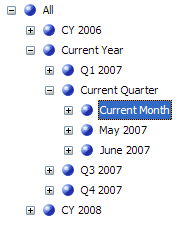
So, if the scorecard view page filter remembers the default member key (and name) as set in Builder then why not pass it the same value all the time? If the current quarter member's key is always [Calendar].[Current Calendar].[Month].&[1] and the corresponding member name is always [Calendar].[Current Calendar].[Month].[Current Month] then BSM will have no problem slicing KPI data by this member every time. All we need to do is ensure that the correct members are assigned the correct key and name depending on the current date. A hierarchy that implements this type of functionality will look something like the picture below. Note that the year 2007, Q2 and April have all been replaced with Current Year, Current Quarter and Current Month respectively. Under the covers the keys that identify these members are also [Calendar].[Year/Quarter/Month].&[1]

We can ensure that the current day/month/year members of an attribute always have the same key by using a view in the data warehouse that references the base calendar dimension table to dynamically calculate these values using GETDATE() as a reference point. To correctly configure each attribute in the dimension the view will need 3 columns (key, name and order) for each "current" attribute we want to create.
  1. ...Key - a numeric key for all values (e.g. 200702 = February 2007) except the calculated current period which will be assigned a 1
  2. ...Name - human-readable name (CY 2007, April etc.) for all members except the current which will be assigned a static value like "Current Month", "Current Year" etc.
  3. ...Order - a numeric key to order the attribute members so that the "Current ..." sits in the right place.

Listing 1 contains the SQL code for creating (and populating) a sample calendar dimension and listing 2 contains the SQL for creating a view off that table and the appropriate sets of 3 fields.

Configuring the Dimension Attributes

When it comes to the time dimension itself it is important to note that I am very definitely not talking about dynamically altering the values of the base dimension key. The dimension key is sacred and does not get touched. All we want to do is add extra attributes that are related to the dimension key via attribute relationships. On top of the regular (Year, Month, Day etc.) attributes we will also have Current Year, Current Month, Current Day etc. attributes thanks to the output of the view. The T-SQL view code determines who gets the key value of 1 and name of "Current..." each day. We can then create separate hierarchies, one containing the regular attributes and one for the current attributes.

When configuring one of the new attributes in BIDS use the ...Name and ...Key fields in the KeyFields and NameFields attribute properties. The trick to getting members ordered correctly (because we have a 1 floating about in the key field) is to:

  1. add the ...Order field as a new dimension attribute
  2. create an attribute relationship on the attribute that will use the value in the ...Order attribute to order its members
  3. in the attribute to be ordered set the OrderBy property to "AttributeKey", and set the OrderByAttribute property to reference the ...Order attribute created in step 1
  4. set the newly created ...Order attribute's AttributeHierarchyEnabled property to "False" - we don't need it for anything other than ordering

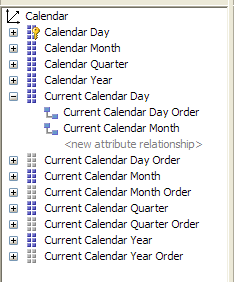
The shot below shows the Current Calendar Day attribute, it has a relationship to the Current Calendar Day Order attribute to enable ordering. Meanwhile the Current Calendar Day Order attribute itself has been disabled, hence greyed out.


Processing

Because we are changing a few values in the time dimension as often as the lowest granularity (normally a day) the calendar dimension needs to be regularly processed. Again, we are not doing anything to the dimension key here, all that is being done is changing the key and name values of some attribute members that are related to the key. A ProcessUpdate will be fine to ensure the appropriate attributes contain the most relevant information.

Summary

This is certainly not a silver bullet solution for all calendar dimensions. In SSAS 2005 tuning dimensions to extract maximum performance from your cube is essential. Adding extra attributes that (in this case) necessitate regular processing of a dimension like time, which mostly quite static in nature, should be something which should be carefully considered before moving forward.

That said this technique can be extended further if need be. For example you can incorporate "previous" and "next" periods, all that needs to be done is to agree on what the key and name values will be, maybe -1 for "previous" and 2 for "next". The current attribute members can also be useful when creating cube-based reports that need some form of "current" functionality - the MDX becomes much easier to write.

Now, in BSM (once the appropriate dimension attributes and hierarchies are in place) you can simply choose "Current Month", "Previous Quarter" or whatever you have configured as your default member of a scorecard page filter with confidence knowing that it will always slice on the right value without any user intervention (as long as the Calendar dimension is regularly processed).

Source code .zip file containing the SQL code to a sample calendar dimension and the subsequent view, database backup and an SSAS solution containing a regular Calendar hierarchy and also a Current Calendar hierarchy can be downloaded here.

Tuesday, April 17, 2007

AMO in SSIS Script Tasks

Lately there has been some good stuff on using AMO in SSIS script tasks for processing SSAS objects posted by Vidas Matelis with some helpful input from Darren Gosbell.

Not to be outdone, Adrian Downes has just posted part two of a series detailing how to use AMO in SSIS script tasks to dynamically create partitions and then create aggregations on said partitions.

Monday, April 16, 2007

The book is finished!

It's done! The guys at Rational Press informed us today that The Rational Guide to Microsoft Office Business Scorecard Manager 2005 is now complete having just come back from the printers. A great relief and a huge sense of satisfaction for both Adrian and I.

The Rational Guide formula dictates that the books will be precisely 224 pages in length, and this one is no exception. Because we couldn't restrict ourselves to that many pages we have several .PDF bonus chapters that will also be available for download upon registering the book.

  • Enhancing Dashboard Interaction in SSRS Report Views
  • Scoring
  • Introducing PerformancePoint Server 2007
  • Advanced Tools and Utilities
  • Guide to Further Resources

Thursday, April 12, 2007

Dear Mr Architect...

An entertaining post by Peter Koller pondering If building architects had to work like IT architects. Worth a read while enjoying that oh-so-important morning cup of coffee.

If I may, I'd like to add another paragraph to Peter's letter:

"The house will be comprised of three stories. Because the most important rooms for us (kitchen, bedrooms etc.) will be located on the third story we would like you to design and build that one first. You can work on the remaining two stories and foundation further on down the track, they are of lower importance to us."

Tuesday, April 10, 2007

Excel 2007 Pivot Tables Whitepaper

via David Gainer's Excel 2007 blog:

The Excel team have released a new whitepaper which is a useful summary on how and where SSAS cube meta data can be organised in order to be displayed/accessed effectively through Excel 2007 PivotTables. For many SSAS developers there will be nothing new here but it's great to have this information handy in the one document. Anyone writing up SSAS best practices documentation for their organisation will find it particularly useful.

The whitepaper (both in .doc and .docx formats) can be downloaded here.

Friday, March 30, 2007

Someone I admire

I admire a lot of people. They are people who do things that I aspire to or who do things that I can't. I need to add another to my list as a result of a client I worked for this week.

Kenny's a developer/web designer and all-round IT geek. He's passionate about technology and loves to learn. He is an MCSE, MCAD, MCPD among others, he also has a B.Sc in IT. He's developed some great stuff for the organisation he works for and is a font of .NET knowledge to his co-workers. His next goal is to get certified as MCITP DBA. His skills & passion put him right up there with a some of the best developers I have worked with.

Nothing particularly special so far? OK. What stands Kenny head and shoulders above others is the fact that he is vision impaired. A genetic condition left him with nothing but very limited peripheral vision only so his ability to see the screen directly in front of him is literally zero. So from an IT development perspective you could say he's almost completely blind. All he has achieved in IT, solutions he has built, his knowledge, degree, MS certs he has done without the aid of sight. He does his work using his encyclopedic knowledge of keyboard shortcuts and a screen reader called JAWS (Job Access With Speech) which converts text on the screen to sound.

I learned a lot this past week about making software accessible really means. Kenny gives very high accessibility marks to both Visual Studio 2005 and SQL Server Management Studio, which was great to hear (apparently SSMS is a monumental improvement over the old Enterprise Manager in this area). However, he did say that there were several areas where simple, but effective, accessibility improvements could be made on both apps. I hope MS gets in contact with him as he would love provide them with feedback about what can be done here.

Before writing this post I thought about developing without being able to see the screen in front of me. For those who are sighted, development is pretty much all visual. I mean how much of the other 4 senses do we really use when developing something? Smell and taste? Not at all. Touch and sound? Maybe a bit of each. I would say that development is at least 90%-95% visual. Even names of some of the products we use to develop remind us of this: Visual Basic, Visual C#, Visual Studio. When you think about it like that you get even more perspective on just what Kenny has achieved and continues to do on a daily basis.

Kenny, you rock!